Collaboration
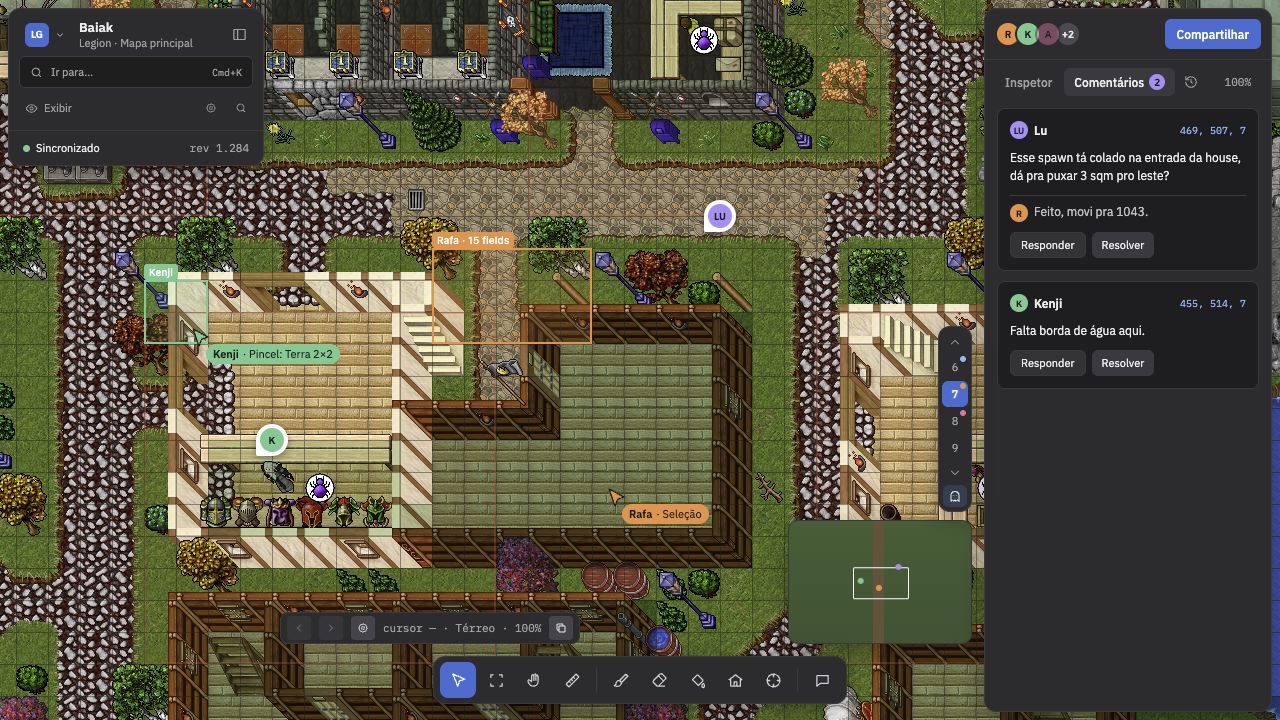
Several people open the same project at the same time. Each person’s edits reach the others without reloading the page.
 {.shot}
Inviting
Section titled “Inviting”The Owner opens Share (at the top of the right panel), types the email, chooses the role (Viewer, Commenter or Editor) and clicks Invite. Orbiz does not send the invitation by email yet: copy the link under Pending invitations and send it to the person. They have to sign in with the invited email.
The invite limit comes from the plan. The Owner can also revoke invitations and transfer ownership of the project, and anyone who is not the owner can leave the project.
The roles are in Projects and layers.
Presence
Section titled “Presence”The avatars of the people in the project appear at the top of the right panel (the first three, plus a counter). Each person has a color. On the map you see, live:
- each collaborator’s cursor;
- their selection and brush area;
- the floor and the zoom they are on.
Someone with the tab in the background or idle appears faded (idle). Viewers and commenters join as spectators.
Click an avatar to open the person’s card, with the floor, the tile and the tool they are using.
Following a collaborator
Section titled “Following a collaborator”On the person’s card, Follow makes your screen track what they see: position, floor and zoom. A colored strip at the top shows “Following Name · floor N” and “Esc to exit”. Moving or zooming the map yourself, or pressing Esc, ends the mode. Stop following, on the same card, also does.
Simultaneous edits
Section titled “Simultaneous edits”If a teammate changes a tile’s stack while you edit it, the editor warns you with their name. The sync indicator in the footer of the left panel shows the state of your upload: Synced, Sending, Reconnecting or Offline. If the connection drops, your edits wait in the browser’s queue and go up when it returns.
New Orbiz version
Section titled “New Orbiz version”When a new version of Orbiz is published while you work, a banner at the top of the screen tells you: “A new version of Orbiz is available.” The Update button reloads the page. Your edits are already saved on the server, so reloading does not lose what you did. The banner does not go away by itself, and you choose when to update.
Comments
Section titled “Comments”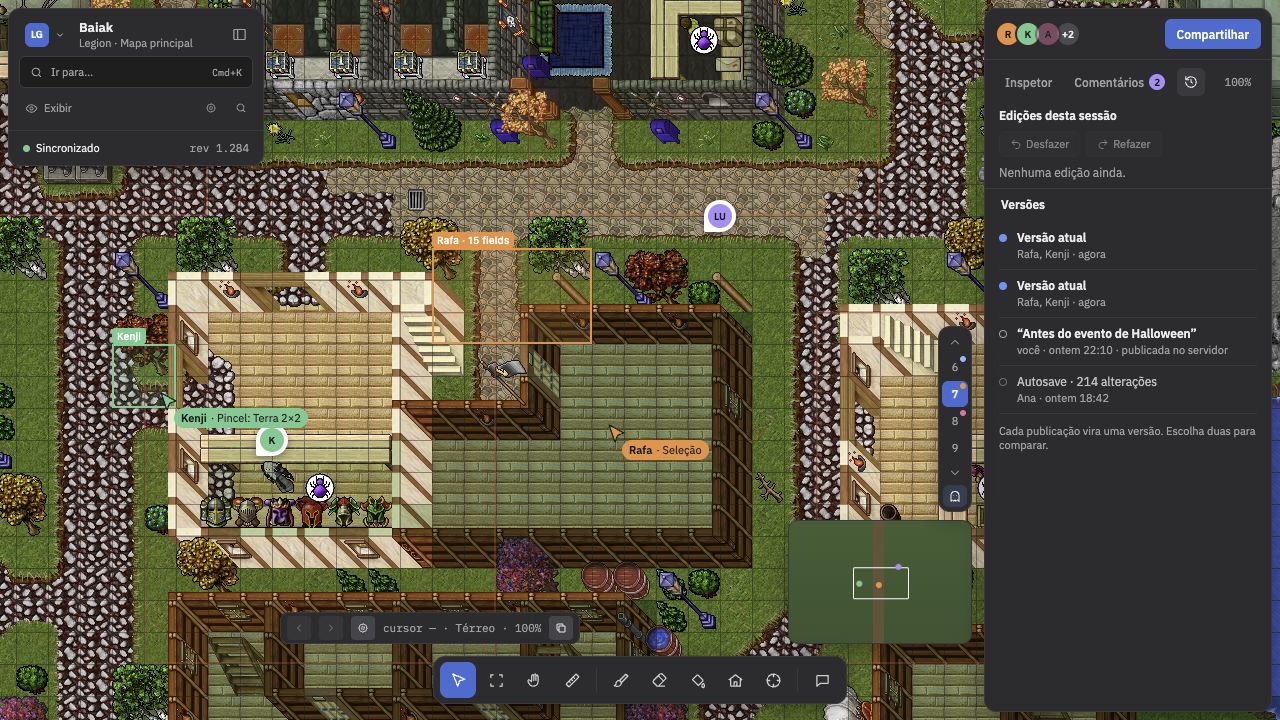 {.shot}
Comments are pinned to a map position.
- Press C (the Comment tool) and click the tile.
- Write in Write a comment and click Comment. Type
@to mention a project member. - The Comments tab, in the right panel, lists the threads. The number on the badge counts the open ones. The coordinates link takes you to the tile.
Each thread accepts Reply and Resolve. Show resolved displays the closed threads. Whoever was mentioned sees the thread with a blue border and the “Mentioned you” notice. The notice is only inside the editor; there is no email.
Viewers cannot comment. Commenters, editors and the owner can comment, reply and resolve. A comment is 1 to 2000 characters and cannot be edited or deleted after it is sent.
Versions
Section titled “Versions”Every ready publication becomes a version. In the right panel, the clock icon opens the history:
- Current version shows who is editing right now.
- Each version carries its name (what you typed when publishing), the author and the date.
- Pick two versions with Compare to see what changed between them: the number of fields, respawns, houses, zones, towns and waypoints changed, and the files that differ.
Orbiz keeps the 3 most recent versions of each project. There is no way to roll the map back to an old version: the base remains the imported files plus the edit history.